Brand Assets
Stop chasing down requests for your logo and color codes. The free Brand Assets plugin transforms your WordPress site into the single source of truth for your brand. With a ready-made pattern for immediate deployment, you can effortlessly create a clean, professional brand page that centralizes all your necessary files—logos, color palettes, and brand guidelines—in one easy-to-find location.
Maintain perfect brand consistency and give your team and partners everything they need, instantly.

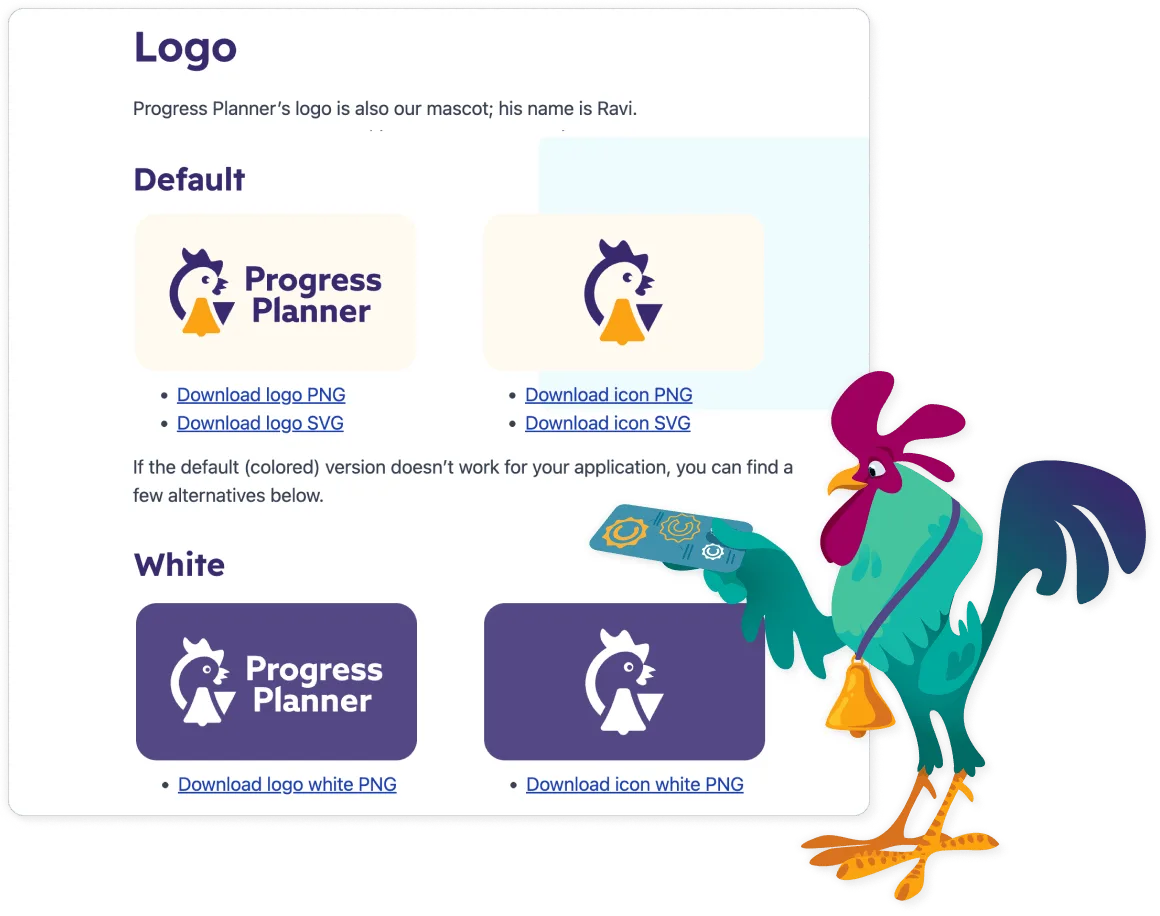
Why do you need Brand Assets?
Most organizations don’t think about a brand assets page until someone asks for their logo or color codes. But if your site is big enough that others might need your logo, it’s worth having a proper brand assets page. Without one, people waste time searching for the right files and often end up using the wrong ones.
The Brand Assets plugin makes that simple. It helps your brand stay consistent and easy to manage.
What Brand Assets does
Many organizations never get around to creating a branding page because building one takes too much time. The Brand Assets plugin makes building a branding page easier and faster than ever.
Prebuilt page pattern
The Brand Assets plugin includes a ready-made page pattern that covers everything most organizations need. It comes with sections for your logos, brand colors, and typography, all laid out in a clean, professional design.
You can insert the pattern in minutes and edit it with the WordPress block editor to match your brand style. No shortcodes or manual coding needed.


Color scheme display
The plugin lets you add responsive, customizable color palettes to any page, so you can clearly display your brand colors. It also includes CMYK support, which allows you to add print-ready color values. This helps designers use your exact brand colors both online and in print.
Flexible layout
The Brand Assets plugin lets you adjust swatch sizes, borders, and gaps to match your brand style. That way, you can display your colors and design elements consistently across your site.
Download links
The plugin makes it easy for others to download your brand files. When you add the class ba-download to a list item in the block editor, it automatically adds the download attribute to every link inside. This lets people download your logos or brand files directly instead of opening them in a new tab.
Logo popover
People often right-click a logo, hoping to find a vector version of it. The Brand Assets plugin adds a popover to your site’s logo with a message that links directly to your brand assets page.
It’s a subtle touch that helps people find what they need quickly.

How do I install Brand Assets?
Through FAIR
You can install Brand Assets through FAIR:
- Make sure you’ve installed the FAIR plugin.
- In your WordPress dashboard, go to Plugins -> Add New.
- Search for “Brand Assets”.
- Click Install Now.
- Activate the plugin.
Manually
You can install Brand Assets manually:
- Download the plugin.
- In your WordPress dashboard, go to Plugins -> Add New.
- Click on Upload Plugin.
- Upload the files you’ve downloaded and press Install Now.
- Activate the plugin.
- Go to Settings -> Brand Assets to configure the settings and start building your brand page.
Frequently asked questions
Yes, Brand Assets is completely free to use. You can download it and start using all its features right away.
We have submitted the plugin for review to the WordPress.org plugins directory. For now, you can download the zip file and upload it to your WordPress site yourself or install it through FAIR.
Start with creating a new page. Insert the pre-built pattern called “Brand Assets Page” and edit it to match your brand style. Publish the page, and you have a professional brand assets page for your site.
Go to your WordPress dashboard. Hover over the settings and click on “Brand Assets”. Here you can set up the popover by selecting the right page, adding the right logo, and changing the popover text.

Try it yourself!
Download Brand Assets today and take the first step towards creating your own brand assets page!